For marketers
Translation
Better Email can turn one campaign into a family of language variants — full sibling campaigns grouped under the original, drafted by Betty AI, reviewed like any other campaign, and kept in step when the original design changes.
Language variants are one kind of Campaign Variant. The other kind is for an audience, market or brand, on dimensions your admin defines. Both kinds share the master's Variants tab. This page covers languages.
How it works
The campaign you start from becomes the master. Every language you add becomes its own campaign with the same design:
- Each language variant has its own content, feedback, approvals, pre-flight checks, and sync — the whole Campaign Workspace.
- The family stays connected. Design changes flow from the master to every variant, and the Workspace always shows you which variants are up to date.
- Betty translates the copy — subject line, preheader, and every text field in the campaign — and preserves merge tags, links, and HTML structure exactly.
Before you start
Translations are enabled per organization. Once the feature is available, an organization admin turns it on and picks the languages under Settings → Translations:
- Switch on Enable translations.
- Use Add language to build the list of languages your team translates into. Search the common list or enter any language tag directly (for example
de-AT). - Save. Removing a language later doesn't affect language variants that already exist.
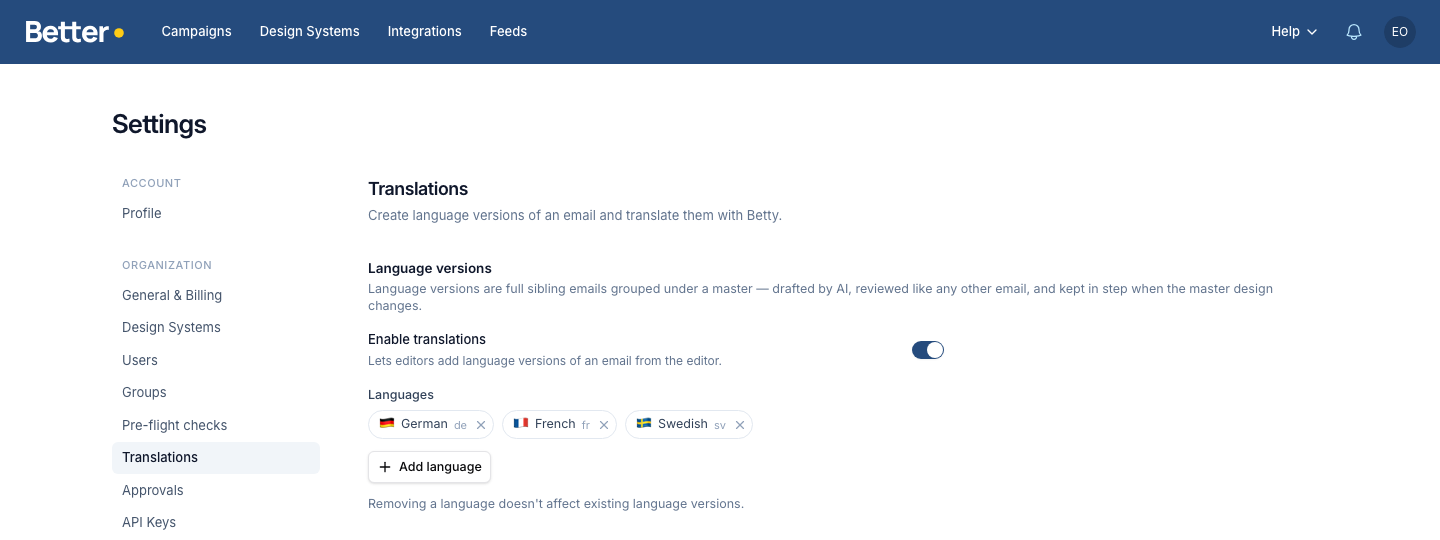
If the page says translations are not available on your organization, contact support to have the feature turned on.
Translation instructions
Betty already follows your Tone of Voice when she translates. Translation instructions are for the rules that only apply to translations, often to one language: how formal to be, how to translate a specific word, words you never want to see, or terms that should stay in English.
An organization admin sets them on the same Settings → Translations page, under Translation instructions:
- All languages applies to every translation.
- Each of your languages has its own row. Betty uses the all-languages text and the text for the language she's translating into, and nothing from the other languages.
Click a row to open it and write the instructions, then save. A closed row shows the start of its instructions, or No instructions if it has none.
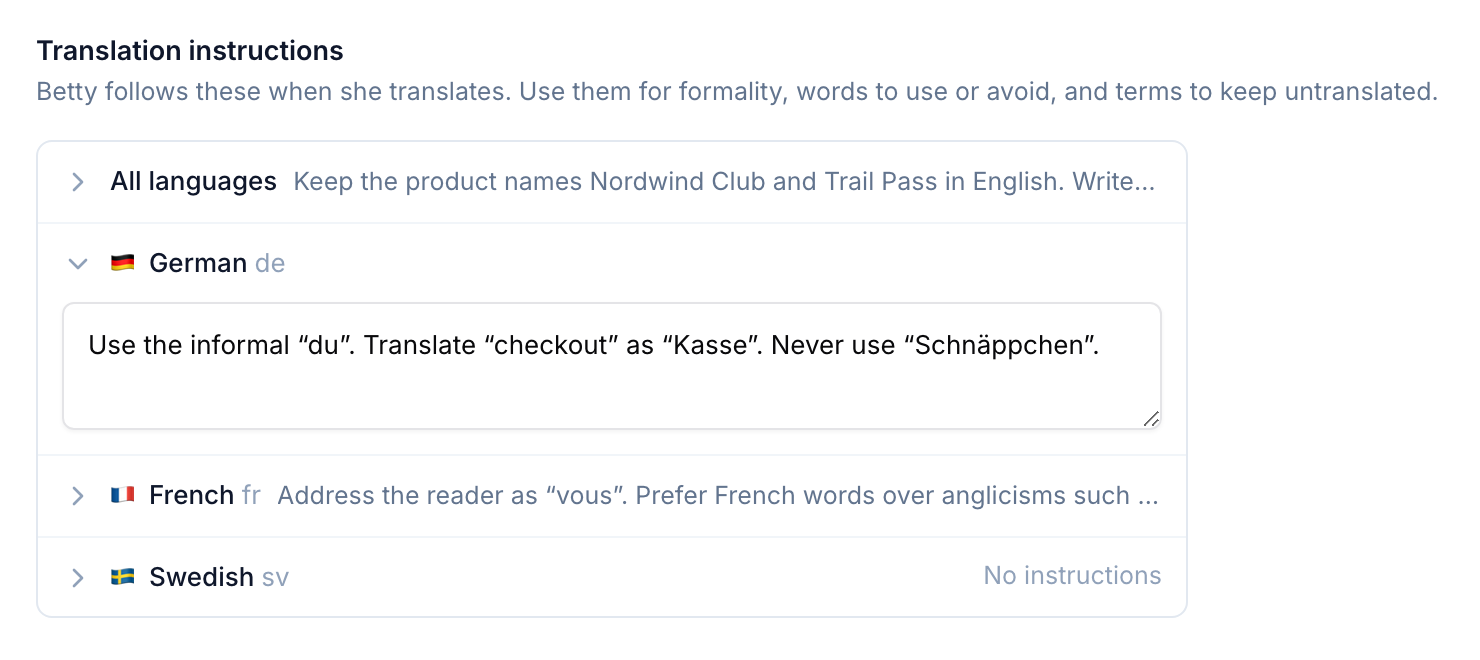
Write them the way you'd brief a translator, for example:
Use the informal "du". Translate "checkout" as "Kasse". Never use "Schnäppchen".
A regional language without its own instructions uses the main language's. For example, if you set instructions for German (de) but not for Austrian German (de-AT), translations into de-AT use the German ones.
Instructions change the wording, not the structure. Betty keeps merge tags, links and HTML exactly as they are, whatever the instructions say. They apply the next time Betty translates. Existing translations don't change until you translate them again.
Create language variants
Open the campaign you want to translate and go to the Variants tab in the Workspace:
- Click Add languages.
- Pick one or more of your organization's languages.
- Click Add languages to create the variants.
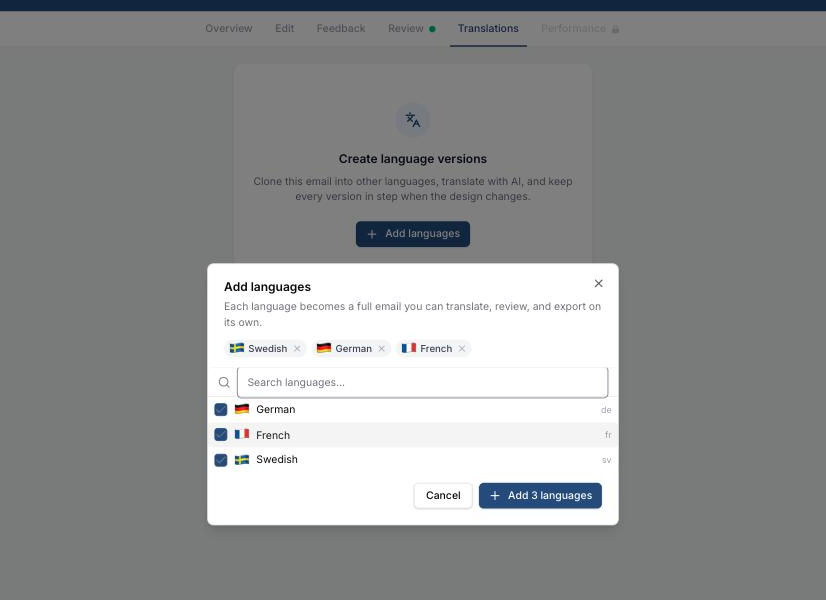
Each language becomes a full campaign immediately — it starts with the original text until you translate it. A good rule of thumb: finish the master's content first, then add languages.
Translate with Betty
Right after creating variants, use the Translate now shortcut in the banner — or Translate all at any time — to translate every language in one go. Single languages can be translated from the row menu (⋯ → Translate this language).
The Variants tab is the family's dashboard while Betty works and after:
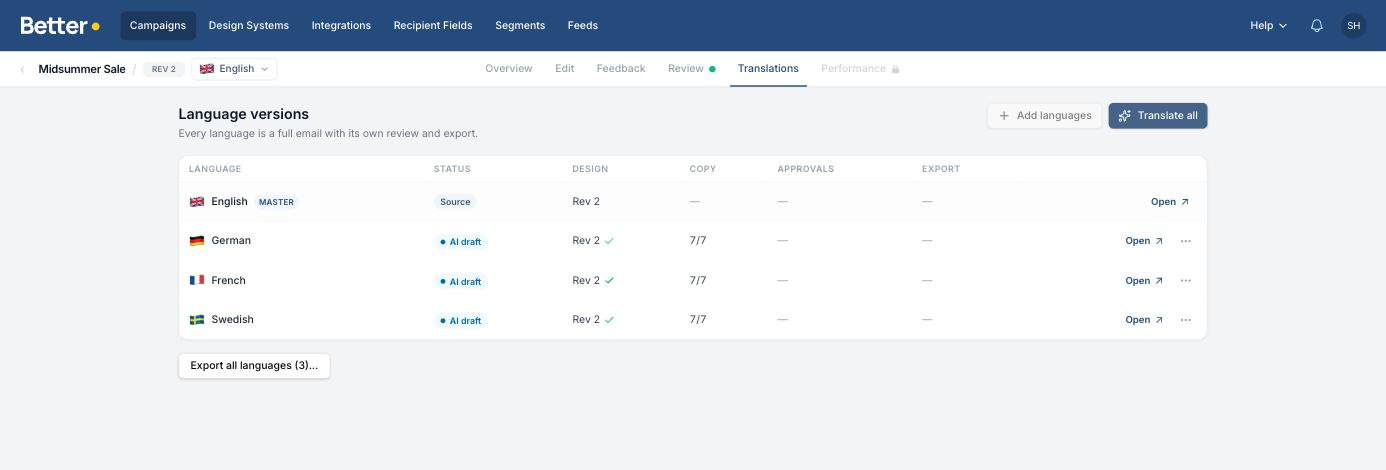
- Status — where each variant is in its life: Needs translation, Translating, AI draft, Edited, In review, Approved, or Translation failed.
- Design — the master revision each variant's design is on, and whether it's behind.
- Copy — how many translatable fields are translated, plus any flagged as stale.
- Approvals and Synced — the same review signals you know from single campaigns.
Betty preserves merge tags such as [first_name] and template expressions byte-for-byte, keeps HTML links untouched, and follows your Tone of Voice and translation instructions in the target language.
Review and edit a variant
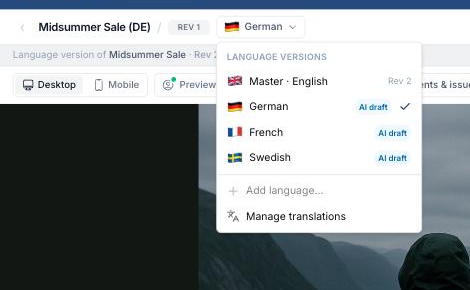
Every language variant deserves human eyes before it ships. Open a variant from the table (or switch with the language switcher next to the campaign name — it lists the master and every variant, and Manage variants opens the Variants tab):
A language variant's editor works exactly like any other campaign, with one addition: a thin Language variant of banner links back to the master it belongs to.
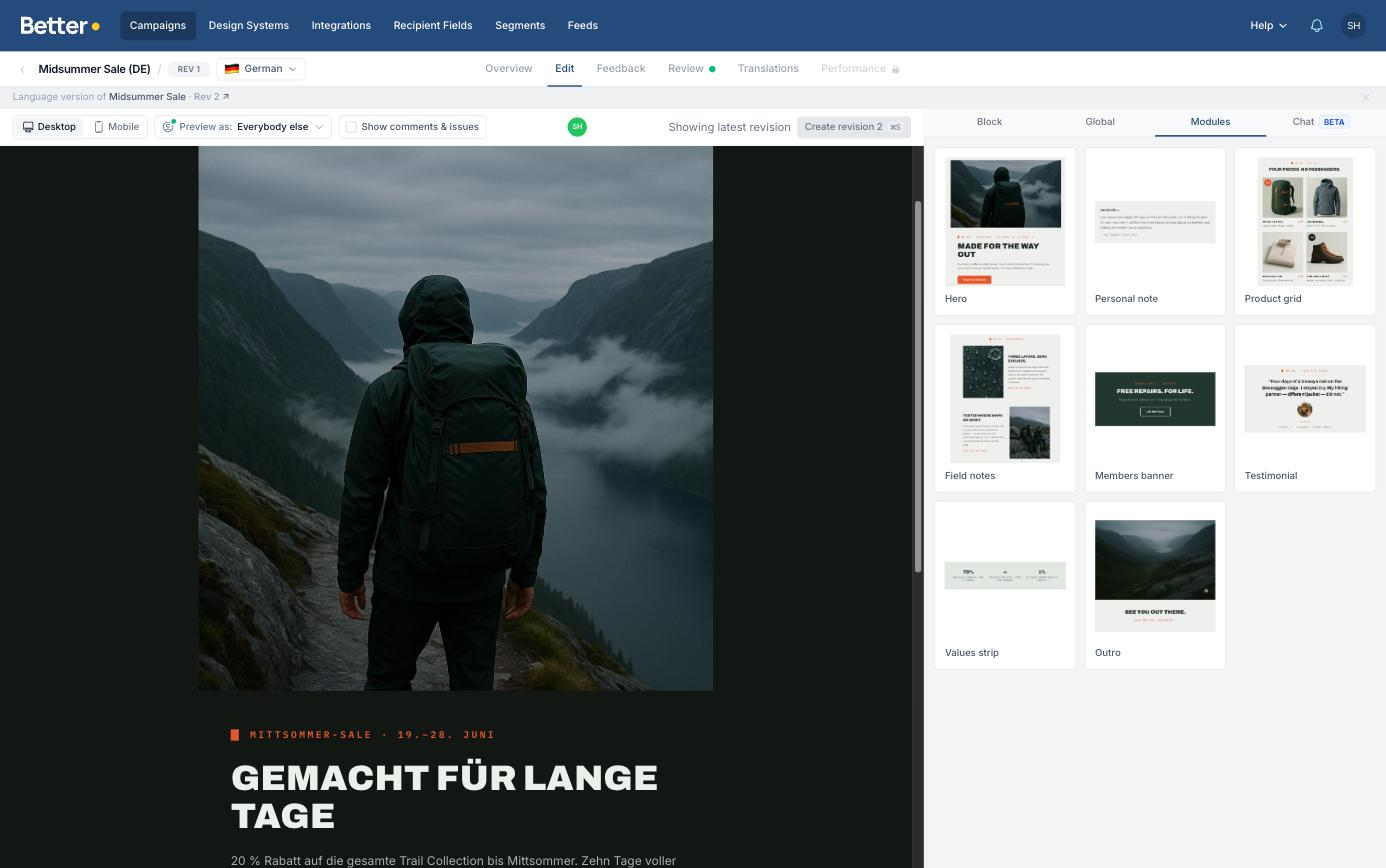
Edit any field to polish the translation — the variant's status changes to Edited so the team can see a human has been in. Reviewers comment and approve per language, and pre-flight checks run per language, so each market signs off on its own variant.
On a language variant's Review tab, the Campaign variants check group warns when fields are still untranslated, when translations went stale because the master's text changed, and when the design is behind the master.
Keep variants in step
When the master's design changes — modules added, layouts adjusted, images swapped — the language variants don't silently drift. Create a revision on the master and the Variants tab tells you who is behind:
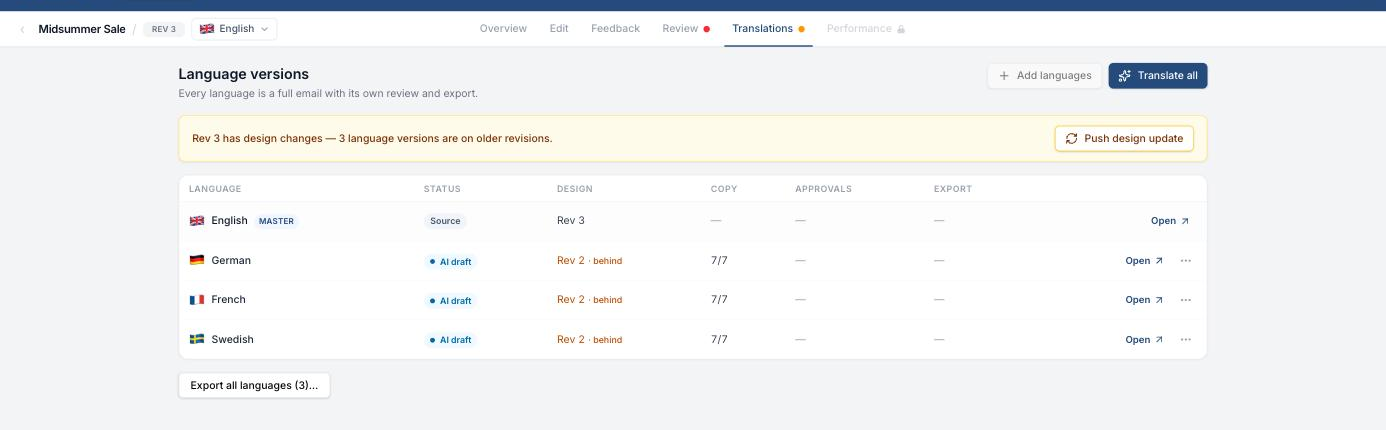
Click Push design update to bring every variant onto the latest design while keeping their translated copy. If the master's text changed too, the matching fields are flagged as stale in the Copy column — use ⋯ → Retranslate stale (or Translate missing fields) on a variant to let Betty catch up, or edit the fields yourself.
Translating again overwrites existing translations, including manual edits, so the Workspace asks you to confirm before retranslating a variant someone has polished.
Sync to your ESP
Language variants sync like any other campaign. Sync each one from its own Review tab, or all of them at once from the Variants tab with Sync all languages (Sync all variants when the family has other variants too). Once approvals are configured, the button becomes Sync all approved and only syncs signed-off variants.
The first sync of a language variant reuses the master's settings for the same integration and creates a new asset in your ESP. It never overwrites the master's. Sync the master once first, and the whole family syncs in one click after that. Iterable works differently. There, language variants share the master's template, as described in Iterable integration.
Managing the family
From the row menu (⋯) on the Variants tab you can also:
- Detach from family — turn a variant into a standalone campaign. It keeps its content but no longer receives design updates.
- Delete language variant — move the variant to the Trash. Restoring it from the Trash rejoins the family.
Best practices
- Finish the master's structure and copy before adding languages — every design change afterwards is one more push.
- Keep one source of truth: make content changes on the master and let translations follow, rather than editing the same thing in five places.
- Review links, dates, prices, and legal/footer content per market — correct language isn't the same as correct content.
- If your campaign uses merge tags or segmentation, verify they still make sense in each language.