For marketers
Dynamic Content / Segmentation
Show different content to different audiences inside the same campaign. Better Email handles segmentation at the module level and exports it in the right syntax for your integration, so one campaign can speak to many audiences without splitting into separate sends.
How segmentation fits together
Three concepts work together:
- Recipient fields — the data points your ESP knows about each subscriber (country, tier, lifecycle stage…). The raw material for any audience rule.
- Saved segments — reusable audience definitions built from those fields. Define once, use across many campaigns.
- Block variants — per-module content that swaps based on conditions. This is what marketers configure inside a campaign.
A fourth concept ties it all together for QA: preview profiles let you preview the email as if you were a specific kind of recipient. The same profile drives the Edit, Feedback, Review, and Overview tabs of the Campaign Workspace.
Recipient fields
Recipient fields are the subscriber attributes Better Email can use in rules and merge tags. They can be:
- added manually
- synced from an integration
Common examples include country, language, loyalty tier, lifecycle stage, and customer type. Recipient fields are scoped per integration, so the same concept (for example "tier") can map to different values in different ESPs.
For ESPs that need a specific syntax inside conditional code (like Salesforce Marketing Cloud's AMPscript), recipient fields can carry a separate value expression alongside their merge-tag value. Design system authors typically set this up once and marketers don't need to think about it.
See Recipient Fields / Merge Tags for the full setup.
Saved segments
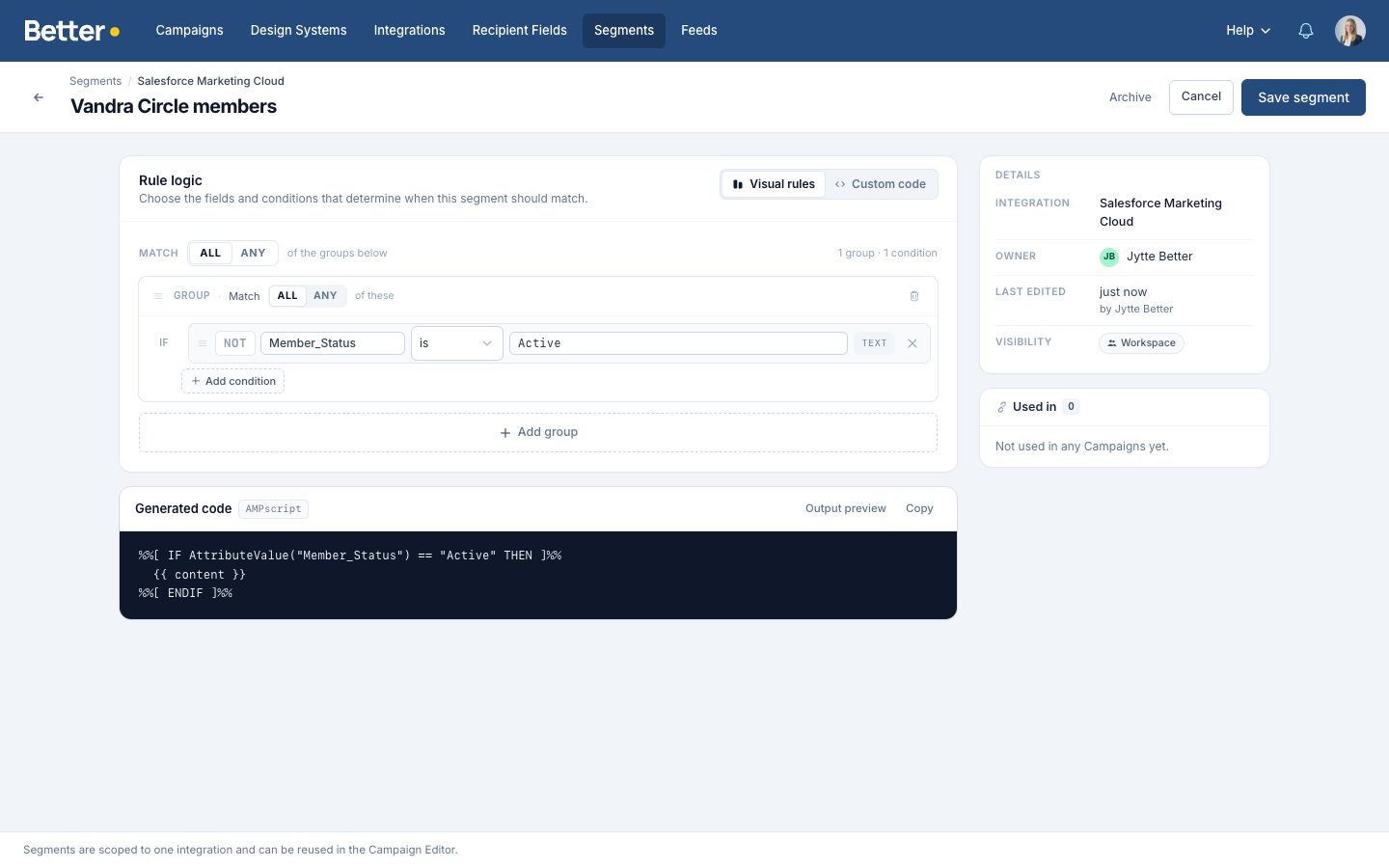
Saved segments live in the Segments area in the top navigation. Each saved segment belongs to a specific integration and can be one of two kinds:
- Visual — a rule built from recipient field conditions (AND/OR groups, equals, contains, etc.)
- Code — a raw ESP snippet for cases where the platform's rule builder isn't expressive enough
What a code segment may contain depends on the ESP. Microsoft Dynamics 365 Customer Insights - Journeys is the exception: it accepts only the name of a condition you maintain in the Journeys designer, never a snippet. See the Dynamics integration guide.
The Segments overview shows your full library. From there you can create, edit, archive, duplicate, and bulk-organize segments, with a live preview of the generated ESP code for visual segments.
Saved segments are reusable — define an audience like "VIP customers in DE" once, then reuse it across campaigns. You can also build a rule inline on a block and click Save on its condition group to add it to the library without leaving the campaign.
Block variants
Inside the Campaign Editor, segmentation is applied per module.
- Select a module.
- In the sidebar, open Segmentation and click + to add a variant.
- Define the condition for that variant in the builder. You can mix recipient field conditions and saved segments.
- Edit the variant's content like you would any module.
Each segmented block has:
- one or more variants with conditions
- an Everybody else fallback for recipients who don't match any variant
Variant order matters. Variants are evaluated top-to-bottom and the first match wins. Drag to reorder. The Everybody else fallback always sits last.
You can hide the fallback with the eye icon on its row. A hidden fallback is left out of the export too, so recipients who match no variant get nothing from that block.
To remove segmentation from a block, delete every non-fallback variant. The block goes back to a single content state.
Block variants or Campaign Variants
Block variants keep one Campaign and one send: a few blocks change per audience and everything else is shared. When the copy or tone changes throughout the email, or each audience needs its own send, Destination or approval, use Campaign Variants instead. Each one is a linked copy of the Campaign that follows its design.
Dates relative to today
A date condition can compare with a fixed day or with a number of days from today. Next to the value, choose fixed date, days from now or days ago. The choice is there wherever you build a condition: saved segments, block variants, and subject line and preheader variants.
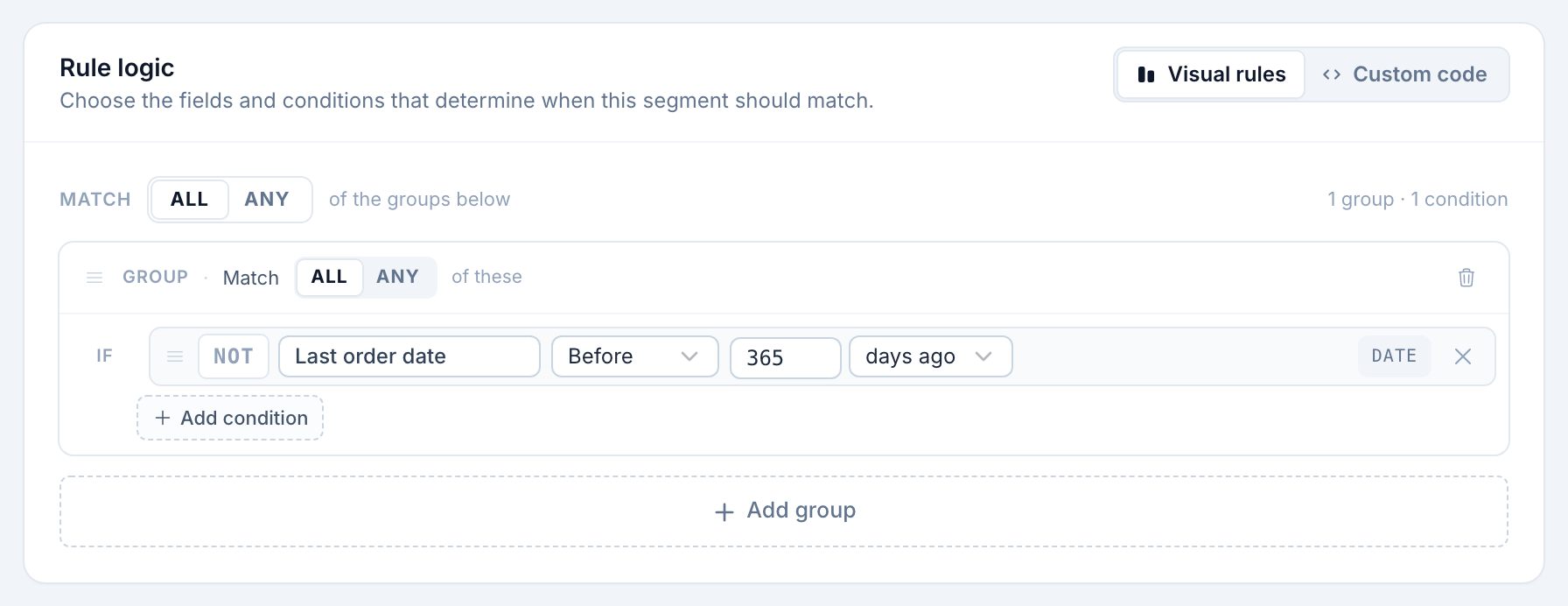
On a date field the operators are On, Not on, Before, After, Within, Is empty and Is not empty. With a relative value they read like this:
| Condition | Matches |
|---|---|
| Arrival date On 14 days from now | An arrival exactly 14 days after today |
| Arrival date Not on 14 days from now | Any other arrival date, or none |
| Arrival date After 14 days from now | An arrival more than 14 days away |
| Last stay Before 365 days ago | A last stay more than 365 days ago |
| Arrival date Within the next 14 days | An arrival from today up to 14 days from now |
| Last stay Within the last 30 days | A last stay from 30 days ago up to today |
Within only takes days. Pick the next or the last, then a number. Both ends count, so "Within the next 14 days" includes today and the day 14 days from now. A count can go up to 3,650 days, ten years.
What "today" means
Today is the calendar day, in UTC, on which your ESP builds the message, not the day you exported the Campaign. For a scheduled send that's the send day. In a journey it's the day the recipient reaches the email, so "On 14 days from now" keeps working for people who enter the journey weeks after you exported.
Dates count in whole UTC days. For a recipient close to midnight in another time zone, the result can be a day off. Microsoft Dynamics 365 Customer Insights - Journeys counts relative dates on trigger fields in the journey's time zone, so a journey that isn't on UTC can be a day off from the preview. See Dates relative to today on the Dynamics page.
Preview in Better Email counts from today's date in UTC.
Which ESPs support it
Relative dates work with Microsoft Dynamics 365 Customer Insights - Journeys, Salesforce Marketing Cloud, Braze, Iterable and Bloomreach Engagement. Each one gets the condition in its own code and works out the date when it builds the message. With other ESPs the builder doesn't offer days from now, days ago or Within.
A relative condition can still end up on an ESP that can't export it, for example after you change a Campaign's integration. The email check Date conditions work in this Integration flags it and blocks export by default. Switch the value to a fixed date, or remove the condition.
Reuse a relative rule
To use the same rule in several blocks, save it as a segment, such as "Arrival in 14 days", and pick that segment in each block's variant. Change the segment and every block that uses it follows.
Design system authors can write the same comparisons in module code. See Recipient conditions.
Preview profiles
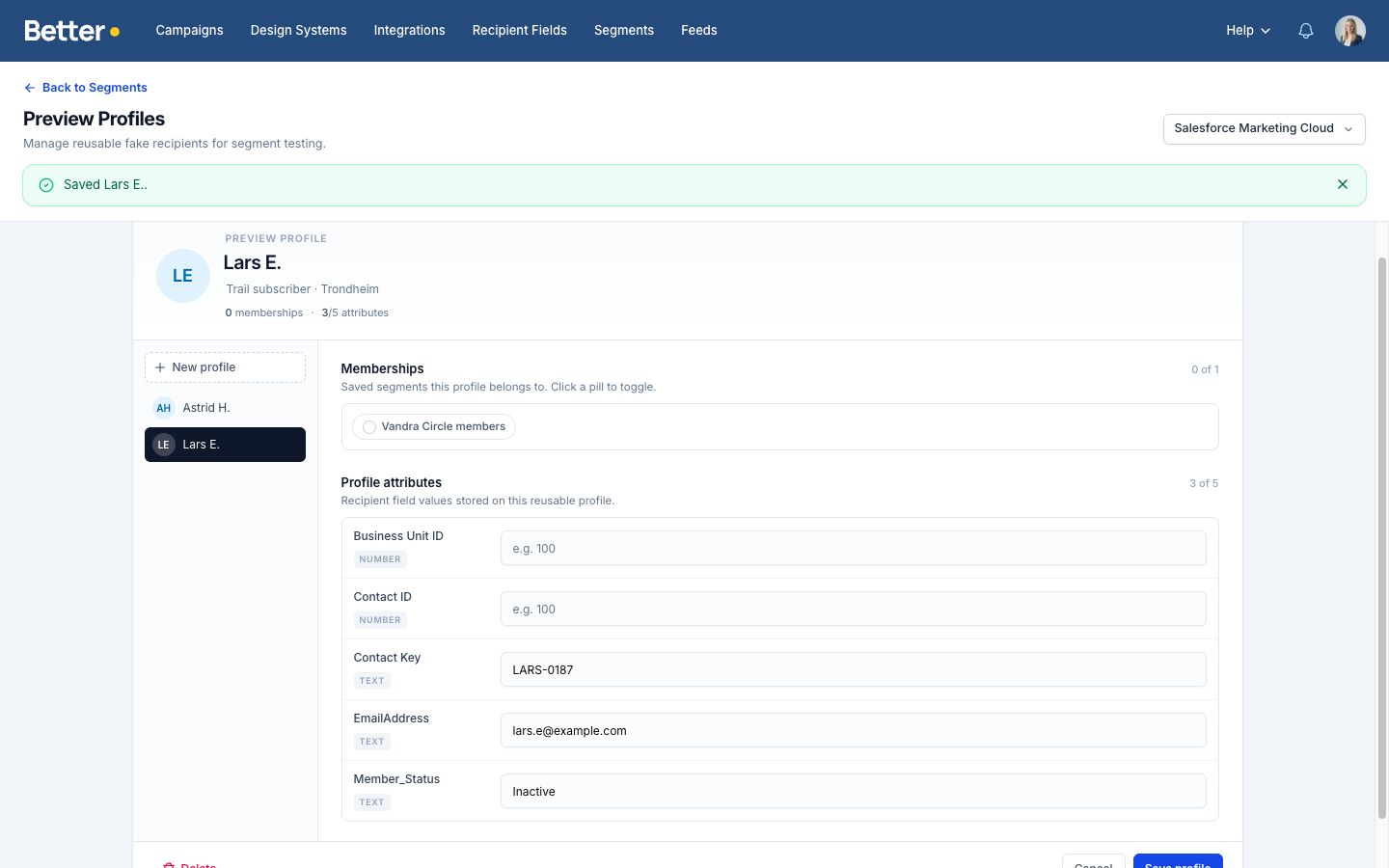
Preview profiles are fake recipients you can switch between while previewing the email. Each profile has:
- recipient field values (the data the rules check against)
- saved segment memberships (toggles for "is this person in segment X?")
- an optional name and description
Use them to QA different audiences without sending real campaigns. The picker is in the toolbar on the Edit, Feedback, and Review tabs — and the Overview tab shows the email through whichever profile you last selected, including the inbox-style subject and preheader.
A profile's Availability is one of:
- This email — tied to one specific campaign
- All emails — saved against the integration and available on any campaign that uses it
You can also generate starter profiles from the campaign's structure, with AI-suggested names and field values you can tweak.
A date value in a profile can be relative too, such as 14 days from now, so a profile made for "Arrival date On 14 days from now" still matches it next week. Profiles generated for a relative rule get a relative date. Where the field appears in the email, preview shows the date it lands on today. This works with every ESP, because a profile only drives preview.
The Everybody else option in the picker simulates a recipient who matches no segments, so you can verify the fallback content.
Profiles for all emails can also be managed on the integration's Preview profiles tab, which is useful for keeping a small set of canonical "personas" you preview against repeatedly.
When segmentation is available
Segmentation needs an integration that supports it. These do: Adestra, Adobe Campaign Classic, Adobe Campaign v8, Adobe Journey Optimizer, Bloomreach Engagement, Braze, Customer.io, HubSpot, Iterable, Klaviyo, Mailchimp, Microsoft Dynamics 365 Customer Insights - Journeys, Oracle Eloqua, Salesforce Marketing Cloud and SAS Customer Intelligence 360. The Custom integration used for custom HTML export and Outlook / EML Download take code segments only.
Segments shows in the top navigation once you have access to an enabled integration that supports segmentation.
The Segmentation panel in the Campaign Editor shows when two things are true:
- The Campaign's integration supports segmentation.
- That integration has at least one recipient field or at least one saved segment that isn't archived.
If either is missing, the panel stays hidden.
Betty and segmentation
If Betty is enabled, she's aware of block variants and can help you:
- create new variants on a block
- set or refine a variant's condition
- reorder or delete variants
- create a new saved segment from a rule
- tailor variant content to its audience
Betty uses the active preview profile as context, so she writes for whichever audience you're currently looking at.
Comments on segmented blocks
When you leave a comment on a block that has variants, the comment remembers which variant was visible at the time. Comment pins dim on variants they don't belong to, and the Feedback tab shows a chip on the thread (for example VIP customers) so reviewers can switch to the right context before responding.
Export
When you sync the campaign, Better Email wraps the variants in the ESP's native conditional syntax — AMPscript IF/ELSE for SFMC, Klaviyo's {% if %} blocks, and so on. The platform handles the syntax differences; the variant logic stays the same regardless of which ESP you ship to.
Best practices
- Keep segment names clear and business-readable. "VIP customers — DE" beats "segment_4".
- Prefer saved segments over rebuilding the same rule in every campaign.
- Always add a meaningful Everybody else variant — never leave critical content audience-gated.
- Keep the number of variants on one block manageable. Too many makes QA hard.
- Build a small set of canonical preview profiles you reuse across campaigns.
- Verify the fallback by previewing with the Everybody else profile before export.